
How to configure server-side tracking for Piano Analytics using GTM
Step 1: Set up data sending from the web to the server GTM
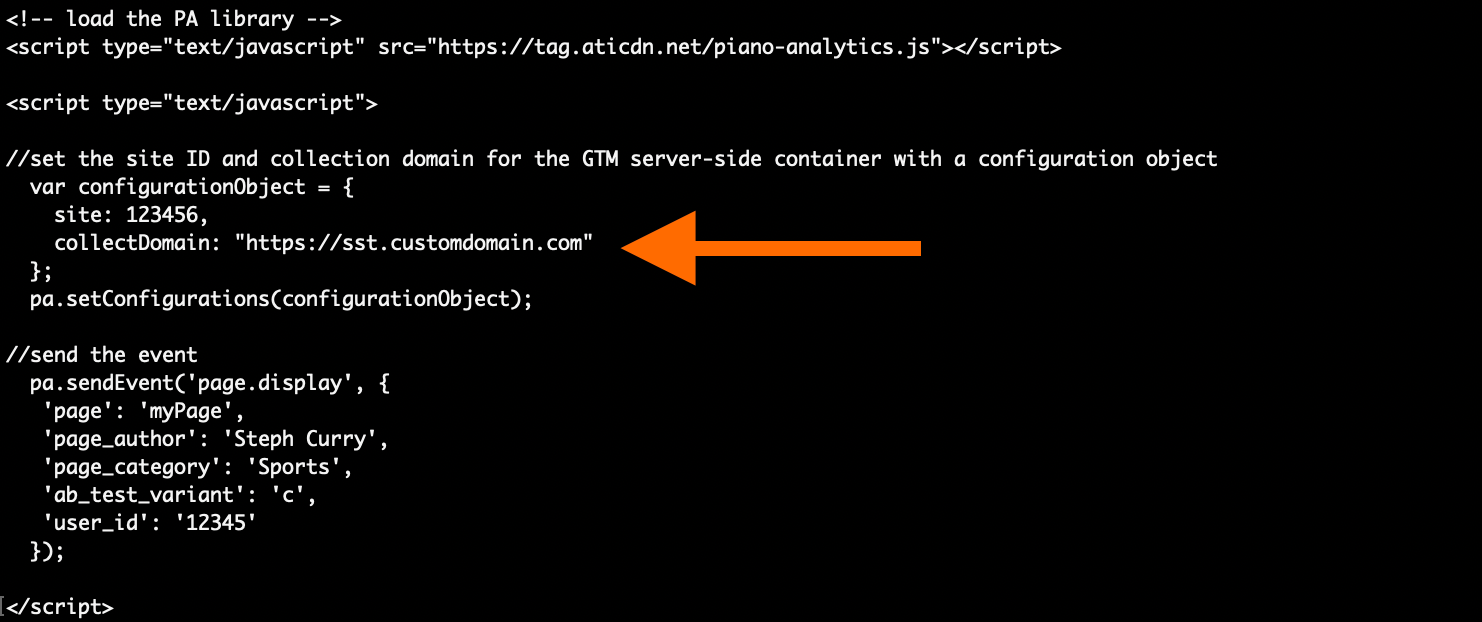
To send data from the web to the server container, you will need to update the existing collectDomain to the one that points to your GTM server-side container.
It must be a change of the collectDomain field in the Piano Analytics SDK code. For more information, please refer to: Piano Analytics JavaScript SDK, Piano Analytics Android SDK, Piano Analytics iOS SDK.
Step 2: Configure data receiving on the server GTM container with Client
2.1 Download the Piano Analytics Client from GitHub and unzip the file.
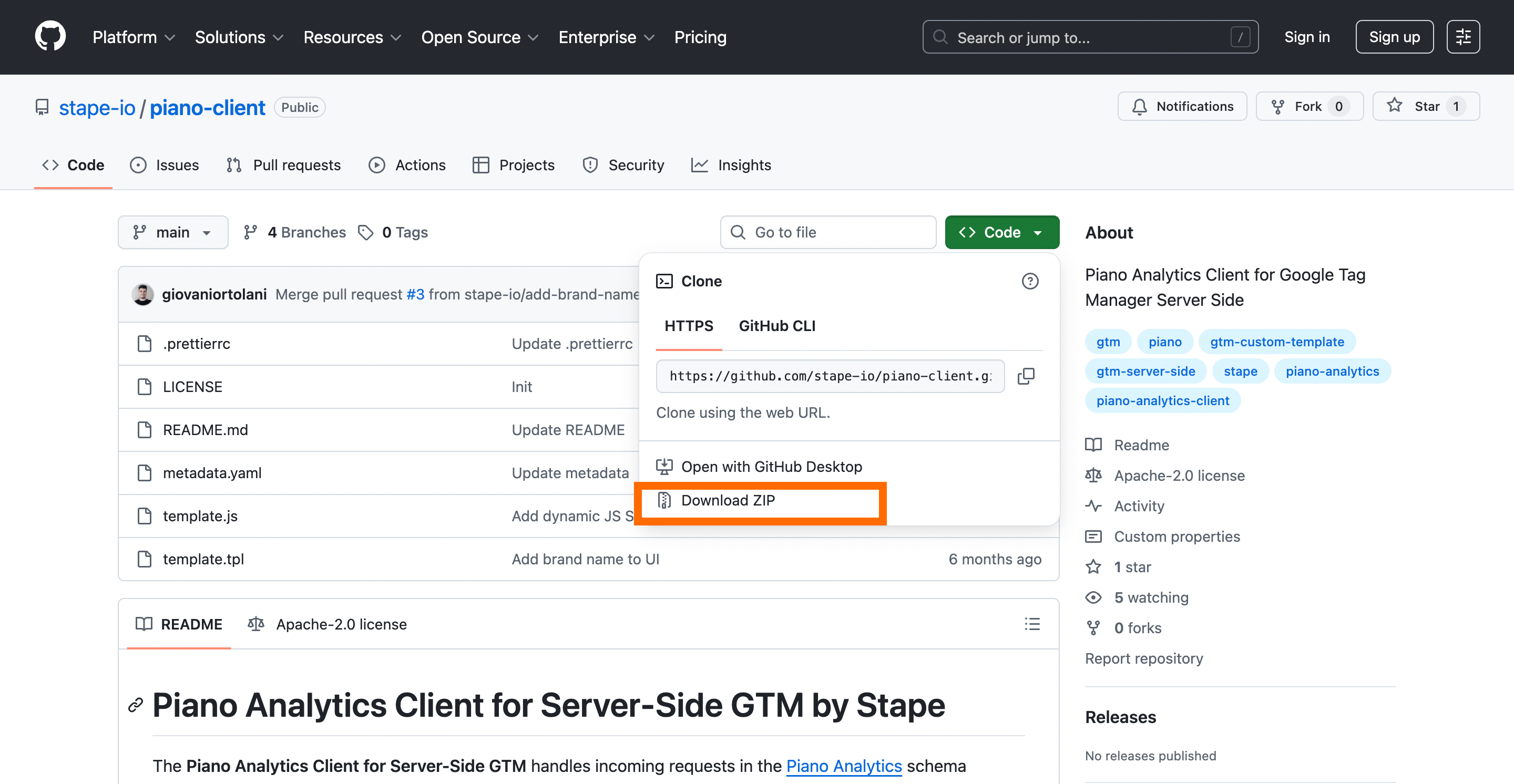
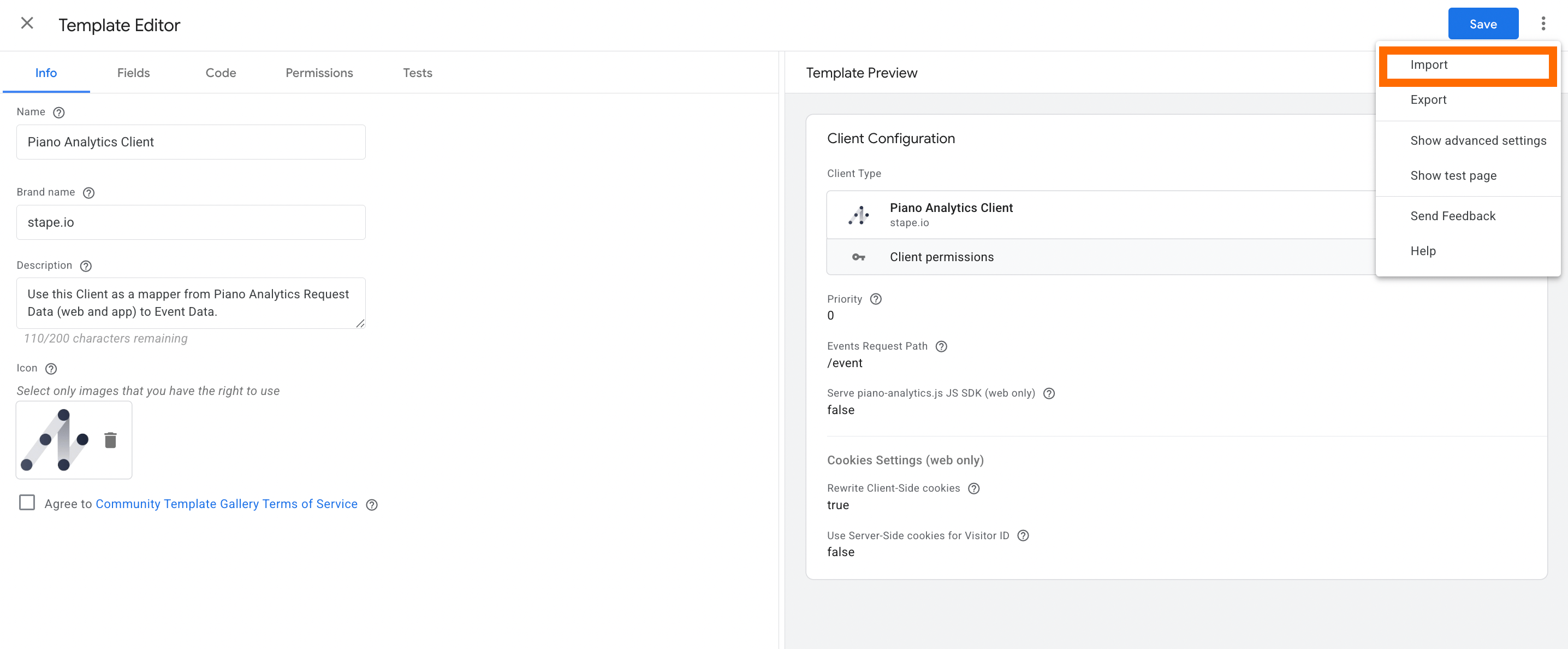
2.2 Go to the server GTM container → Templates section → click "New" next to Client Templates → Import → select the file you downloaded from GitHub → Save.
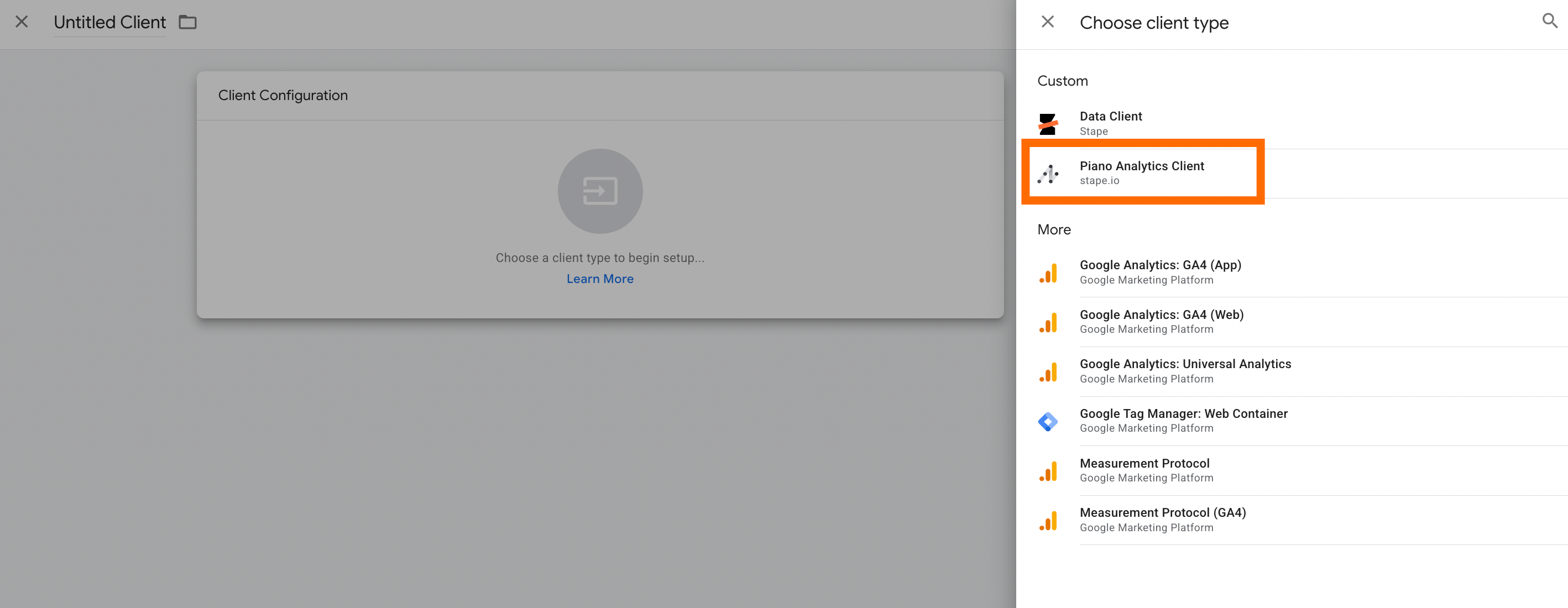
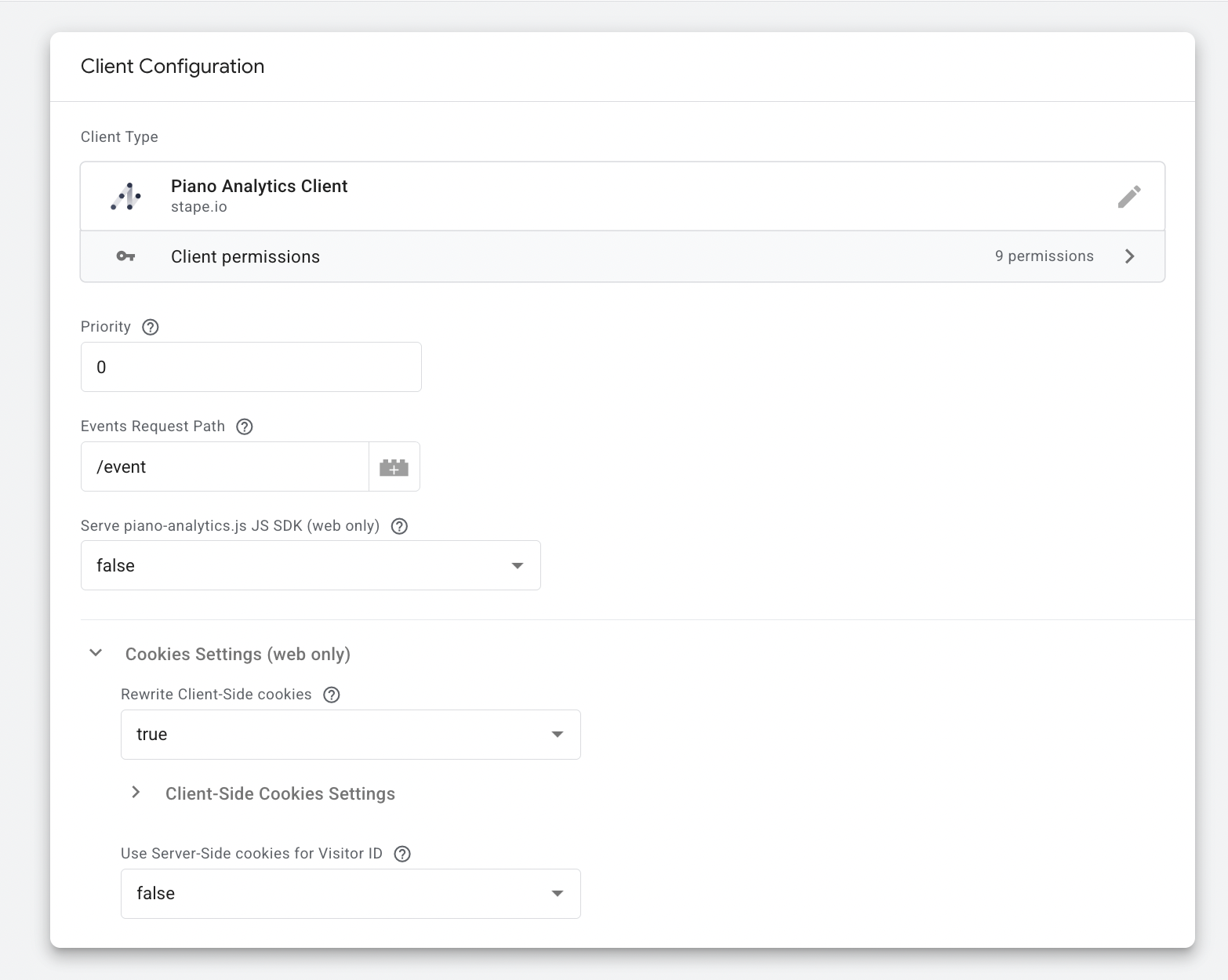
2.3 Go to Clients section → New → select "Piano Analytics Client" as Client type.
2.4 Configure the Client.
-
Set the Event Request Path - the default path is /event. All incoming Piano event requests should be directed to this path.
-
(Optional) Enable JS SDK Hosting if you want your server to host the Piano SDK file:
-
Set Serve piano-analytics.js JS SDK to true
-
Specify the JS SDK Request Path (default: /piano-analytics.js)
-
Configure allowed origins to restrict which domains can load the file
-
(Optional) Configure Cookie Behavior:
-
Enable client-side cookie rewriting to improve reliability across different tracking contexts
-
Enable server-side cookies for the Visitor ID, especially when using privacy modes such as opt-in or exempt (these settings can be adjusted as needed)
Step 3: Send data to Piano Analytics with a tag
3.1 Add the Piano Analytics tag template to your server-side GTM container.
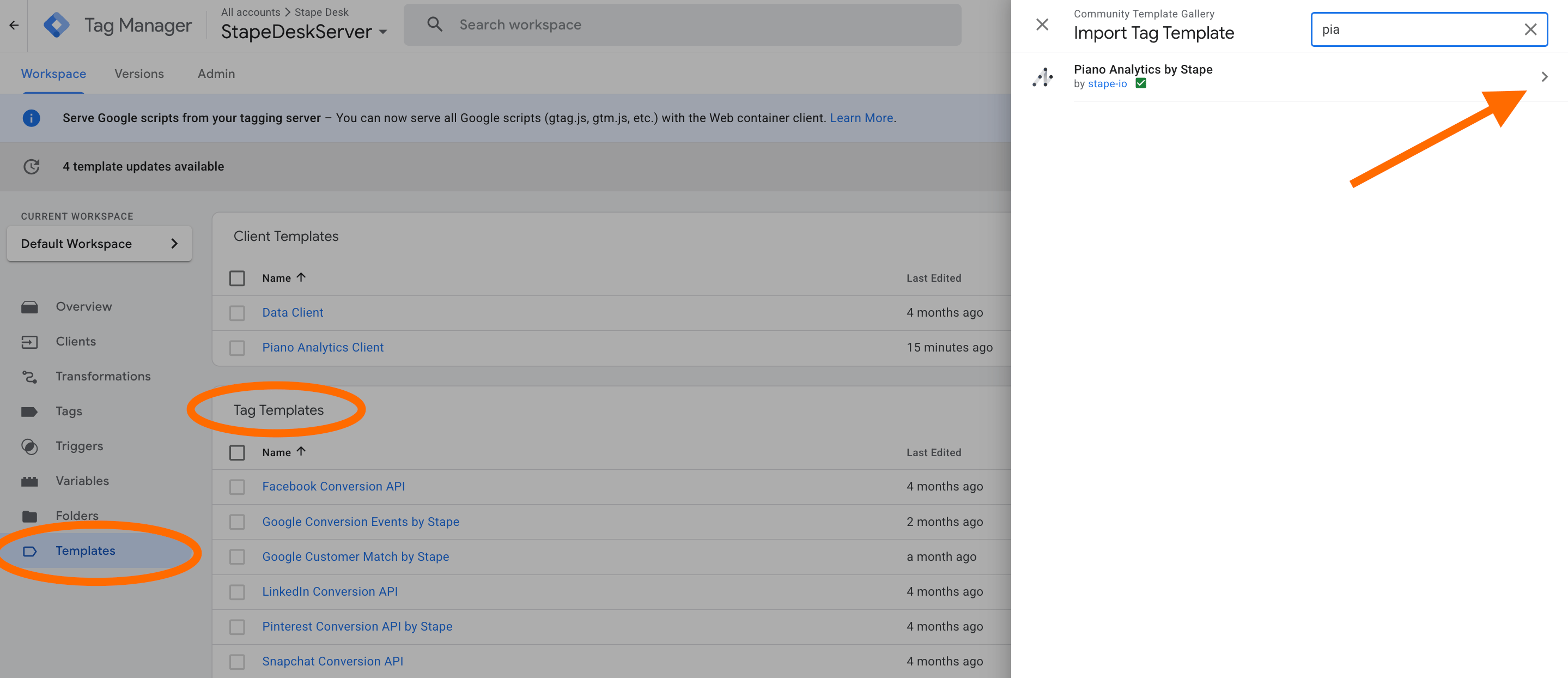
Go to Templates section → Tag Templates → search for Piano Analytics by Stape → click Add to workspace.
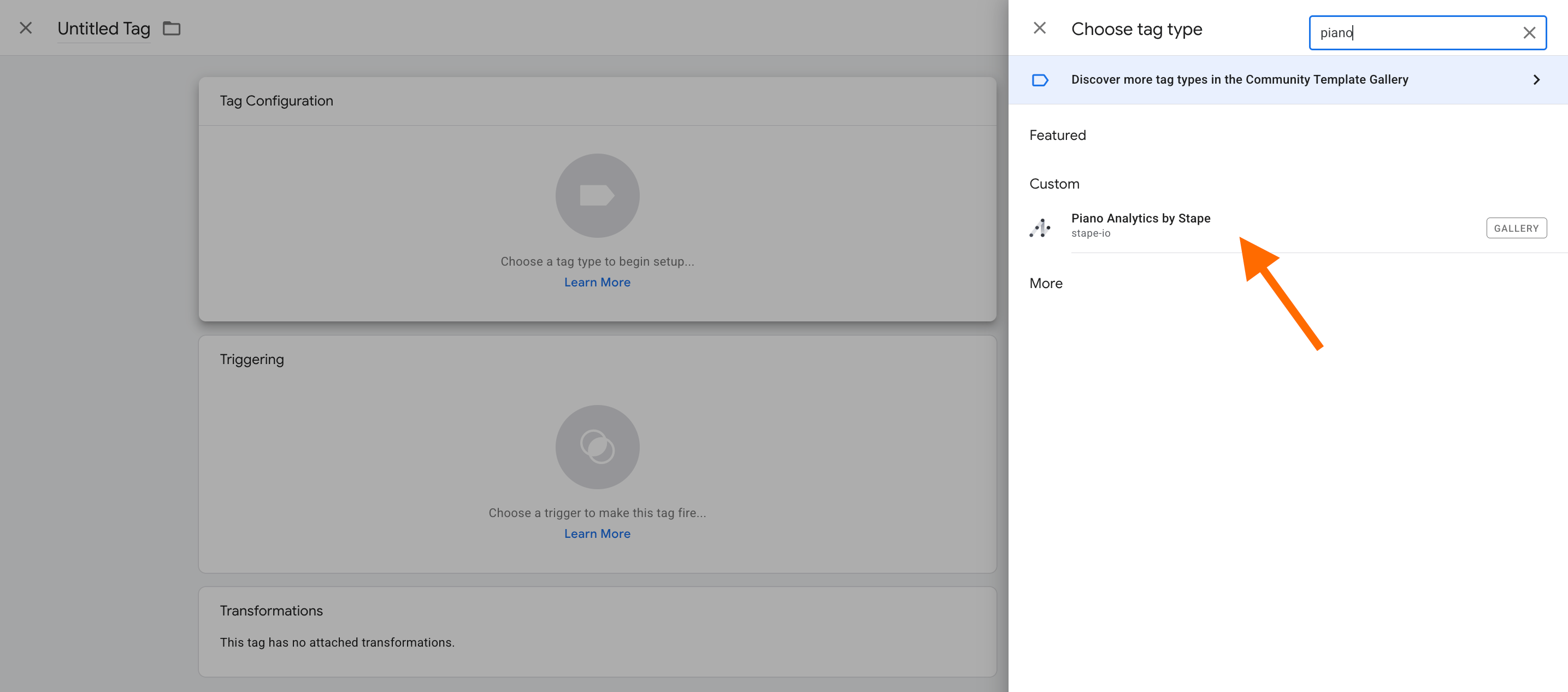
3.2 Create a new tag in the Tags section → select "Piano Analytics by Stape" as tag configuration.
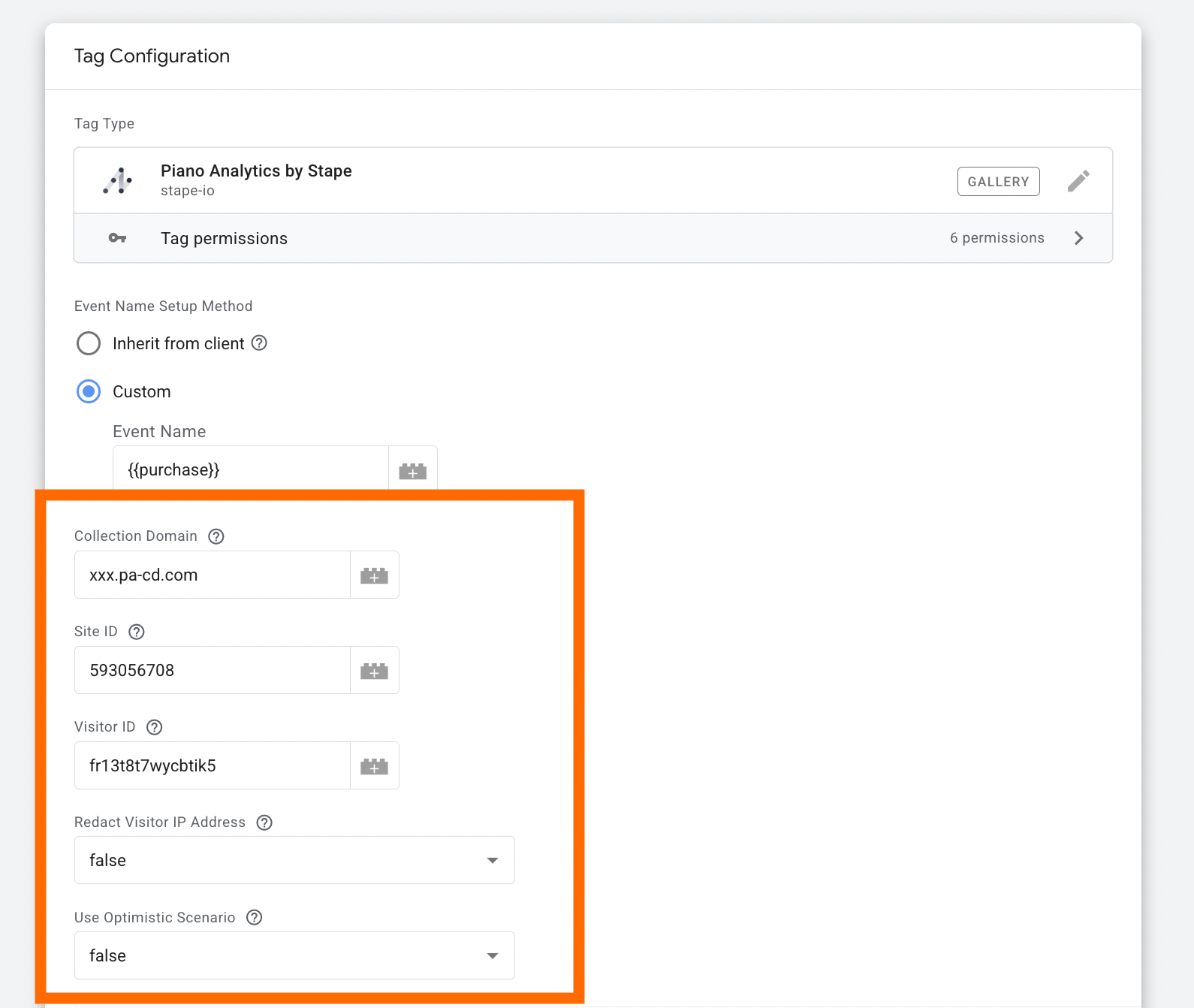
3.3 Configure the tag.
Select Event Name Setup Method:
-
Custom (recommended) - although more advanced to set up, this option allows you to specify events manually and gives you full control over the event payload.
-
Inherit from client - with this option, the tag automatically maps your GA4/Data event payload to Piano Analytics standard events. If no matching standard Piano event is found, the event is sent as a custom event. Refer to the supported event name mapping for details.
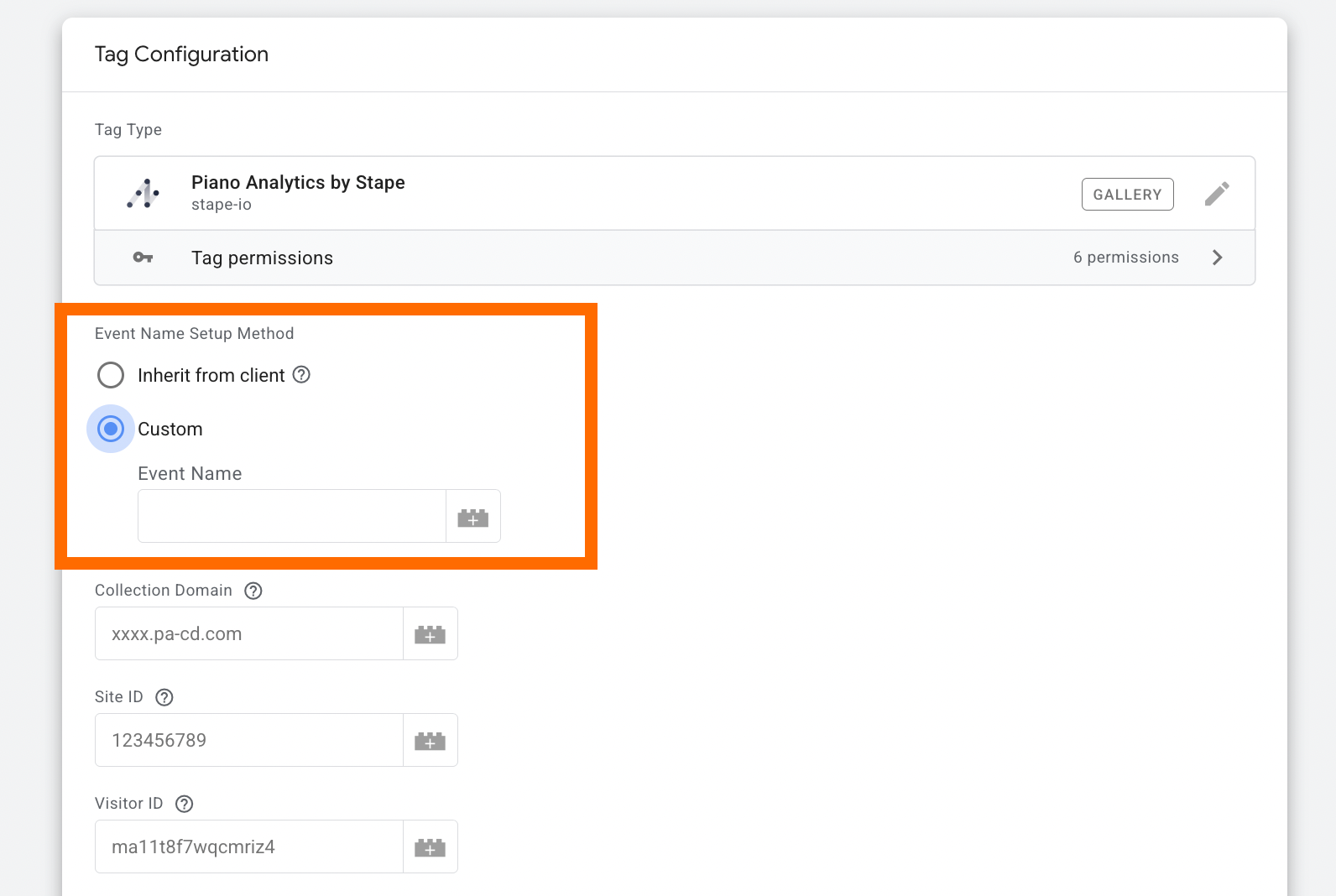
Collection Domain - specify your collection domain. You can find this in the Piano Analytics Dashboard under Tagging → Collection Domains. Refer to the official Piano Analytics documentation for more details.
Site ID (optional) - in the Piano Analytics Dashboard, use the value from the ID column for the relevant website. If left empty, it will be inherited from the Event Data parameter x-pa-site-id (only when Piano Analytics events are used as the incoming server events).
Visitor ID (optional) - provide a unique visitor identifier (either a 16-character string or a UUID). If not specified, it will be inherited from the Event Data parameters client_id or x-pa-idclient.
Redact Visitor IP Address (optional) - removes the visitor’s IP address from the event data. Use this option carefully, as it may reduce reporting accuracy and overall data quality.
Use Optimistic Scenario (optional) - the tag will trigger gtmOnSuccess() without waiting for an API response. This improves sGTM response time, but the tag will always report a successful fire, even if the request ultimately fails.
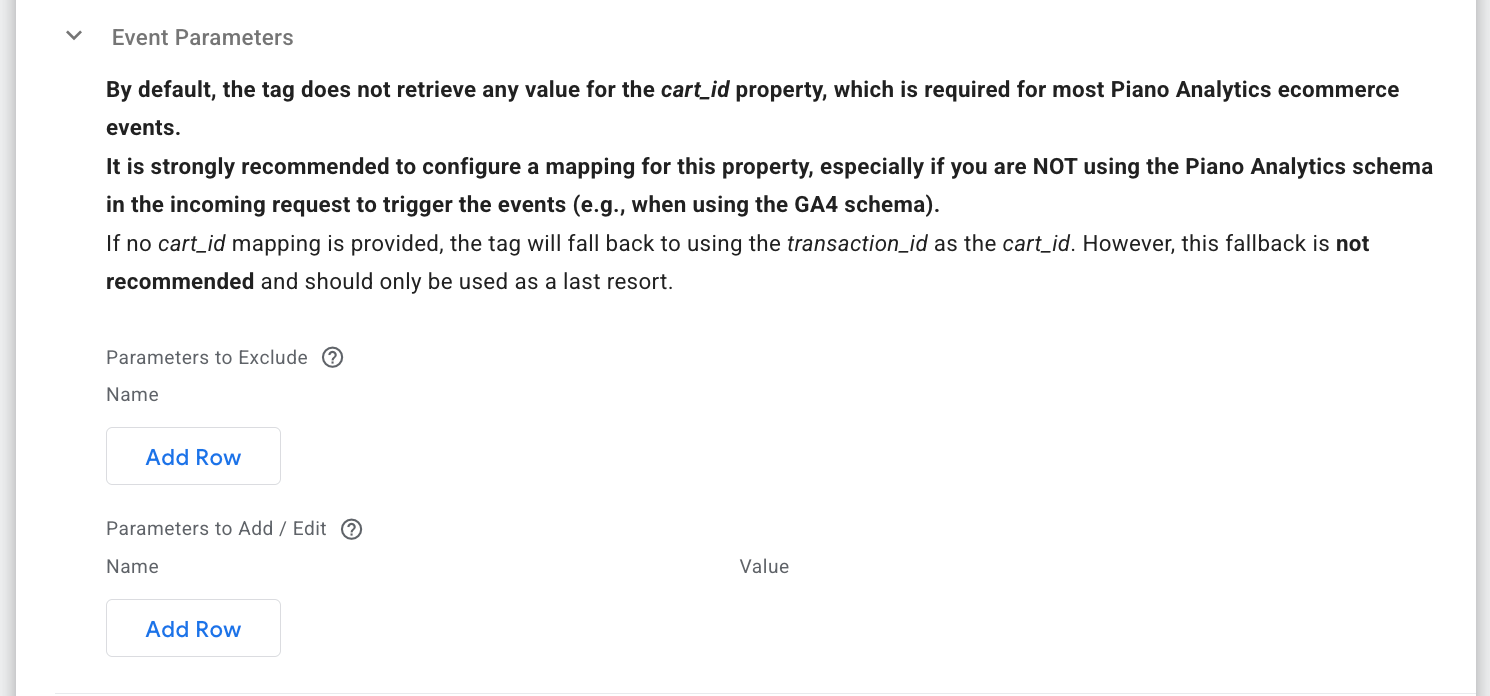
Event parameters - you can add, edit, or exclude event parameters. By default, the tag does not populate the cart_id property (it is required for most Piano Analytics ecommerce events). Be sure to configure a dedicated mapping for this property. If not set explicitly, the tag will fallback to transaction_id, though this is not recommended.
Log Settings - select whether events should be logged to the browser console only during preview/debug mode or at all times.
BigQuery Log Settings - choose whether to store event payloads, request details, and responses in a designated BigQuery table.
Advanced Settings (Additional Tag Metadata) - define extra tag metadata that will be appended to the event data when the tag fires.

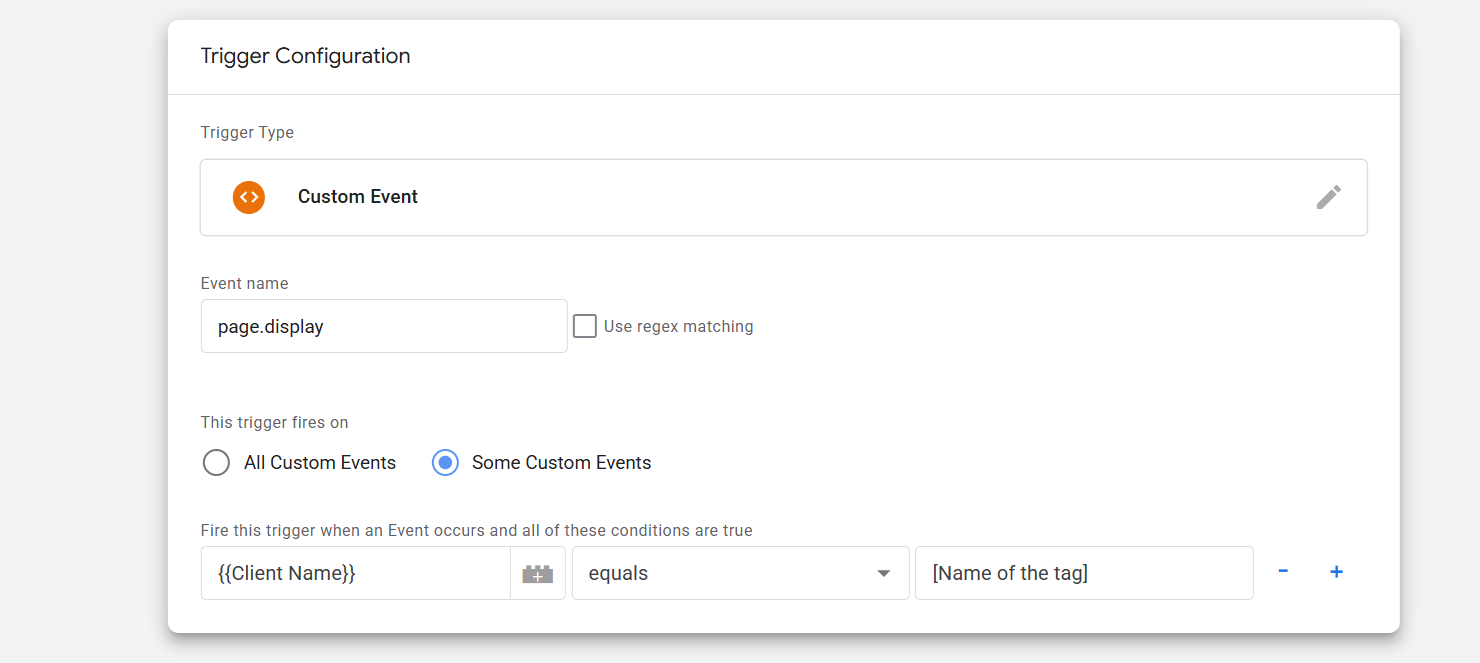
3.4 Add a trigger for the tag. Specify the condition that must be met to fire the tag. Specify the condition that must be met to trigger the tag. The tag from the Piano Analytics Stape container must have the execution of the client-side tag as its trigger. The two tags are not intended to have the same triggers.
For example, if this client tag comes from another GTM Piano Analytics tag, the execution conditions must use the name of the Piano event as the custom trigger event name.
It is possible to condition this event to a specific tag via a filter on the native variable {{Client Name}}:
Step 4: Test your configuration and publish the changes
Piano Tag Inspector
For verifying and debugging the implementation of Piano Analytics on a website, you can use PA's Chrome extension - Piano Tag Inspector. It will allow you to see what information is sent from a website to Piano’s servers in real-time.

Piano Analytics data quality tool
Piano Analytics Stream Inspector helps verify specific Piano events and properties and flag Piano-specific syntax or logic errors.
To find the tool, go to your Piano Analytics account → Settings → Data Collection Portal → Tools → Stream Inspector.