
Subscriptions let you schedule the automatic delivery of a Data Query report on a recurring basis — for example, sending a daily traffic CSV to your team's FTP server, or pushing a weekly performance file to a downstream system.
Before you start
A few things to know before creating a subscription:
-
The report must be saved. Subscriptions can only be created from saved reports — not from unsaved working drafts.
-
Subscriptions are managed from the Library, not from inside the report itself.
-
CSV subscriptions are for Data Query reports. Email subscriptions also exist, but they're for boards, not reports. (See Subscribe to a board for that flow.)
-
The subscription is tied to the report. If you later modify the report — adding a property, changing a filter, etc. — the subscription will reflect those changes from then on. Each delivery always uses the current saved version of the report.
Create a subscription
-
Open the Library and locate the saved report you want to schedule.
-
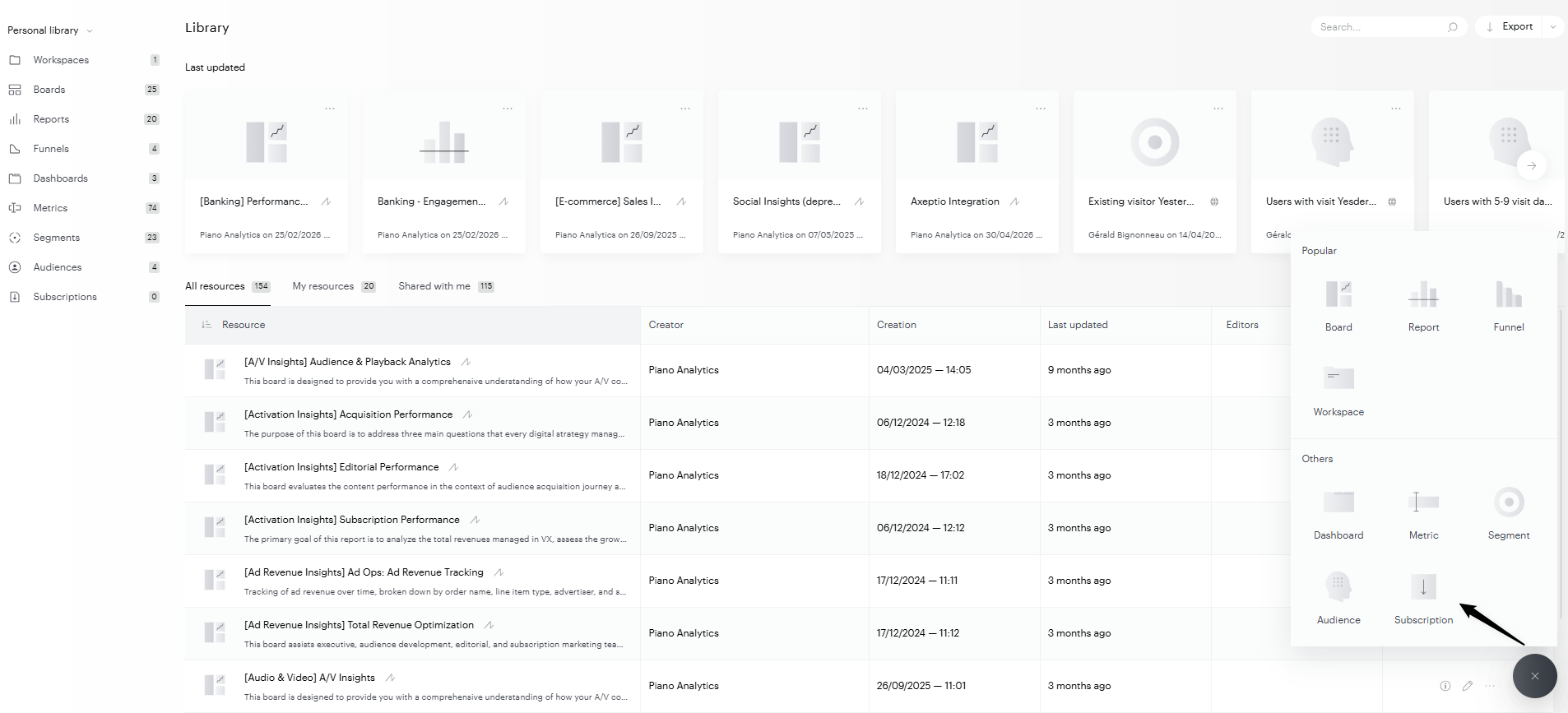
Click the + button in the bottom-right corner of the Library and select Subscription.
-
In the New subscription panel, configure the following sections:
Subscription settings
-
Subscription type — Select CSV for Data Query reports (Email subscriptions are reserved for boards).
-
Subscription name — A short, recognizable name. This will appear in the Library and in delivery filenames.
-
Description (optional) — Up to 1,000 characters to describe what this subscription covers.
-
Frequency — How often the report should be delivered. Daily, Weekly, or Monthly (the Hourly granularity is reserved for organizations with the Data Flow option).
-
Site(s) — The site(s) the report should run against.
-
Enable comparison — Toggle on to include period-over-period comparison data in the delivery.
Source
-
Report — Select the saved report to schedule. Only reports already saved in your Library appear here.
Delivery
-
Destination — Choose where the file should be delivered (FTP or Amazon S3).
-
Settings — Select an existing FTP configuration, or add a new one. An FTP connection must be configured before the subscription can be saved.
-
File prefix — The prefix used for delivered filenames. Defaults to
export_<timestamp>; you can customize it.
CSV options
-
Field separator — The character used to separate fields (e.g., Comma, Semicolon, Tabulation, etc.).
-
More options — Toggle on to reveal additional CSV settings:
-
Field encapsulation — How field values are wrapped (e.g., Double quote).
-
Headers — How column headers are formatted (e.g., Classic names like Converted visitors).
-
Null value replacement — How missing values should be represented (e.g., Empty).
-
-
Click Save.
The subscription is now active and will run automatically at the chosen frequency.
Manage subscriptions
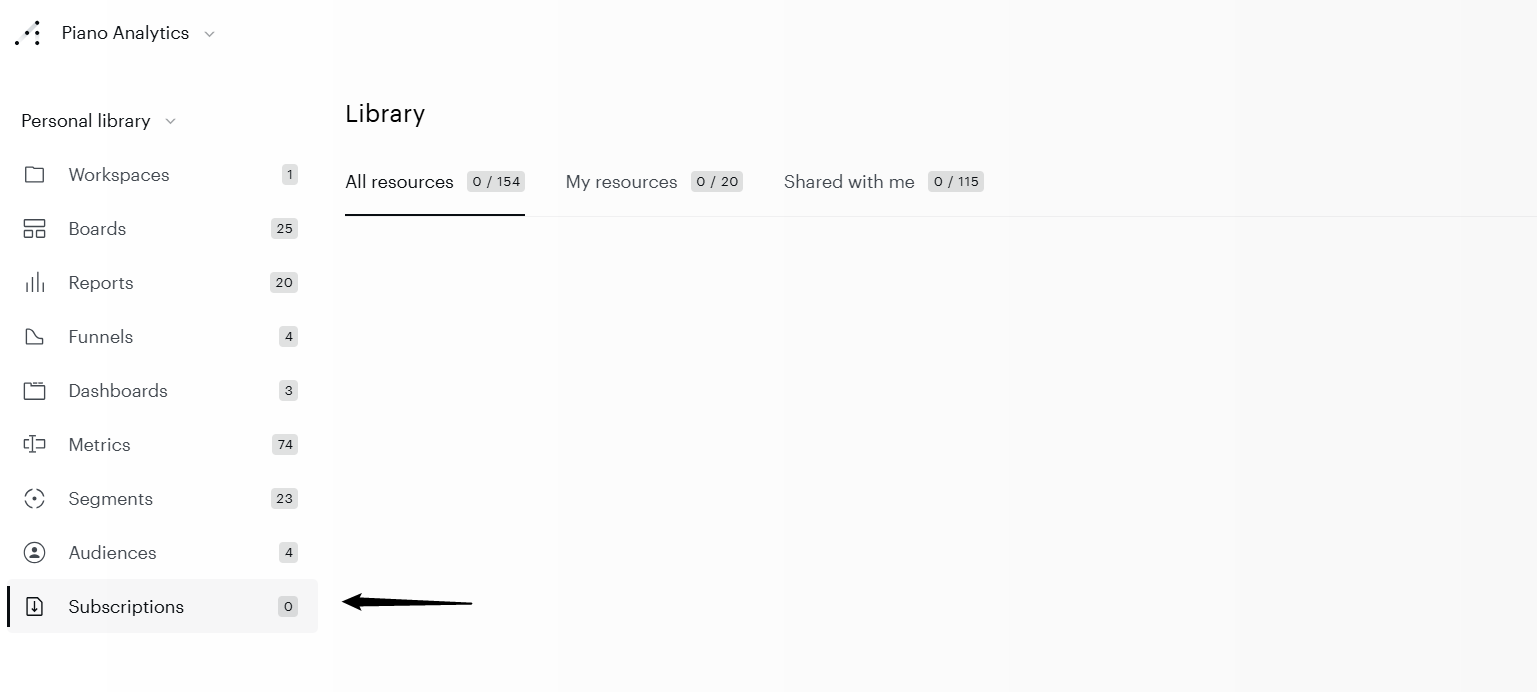
All subscriptions are listed in the Library under their own resource type. From there, you can:
-
Open a subscription to review or edit its configuration.
-
Pause or resume delivery.
-
Delete a subscription you no longer need.
Limits
A single subscription delivery can contain up to 200,000 lines.
Need more? A premium option is available for higher volumes. Contact our support center for details.